

Practical, jargon-free advice to help yourself, your family and your finances from online fraud and cyber crime.

Why this matters
Online fraud is now one of the most common crimes in the UK. Criminals use email, text messages, phone calls, fake websites and social media to trick people into revealing personal information or sending money.
The good news is that most scams can be avoided by following a few simple rules and developing safe online habits.
The golden rules
Stop – Think – Check
Fraudsters often create a sense of urgency.
Be suspicious if someone tells you:
- “Your account will be closed today.”
- “Act immediately.”
- “Don’t tell anyone.”
- “This offer expires in minutes.”
Take a moment to stop and think. Genuine organisations will not pressure you into making immediate decisions.
Never trust – always verify
If a message claims to be from your bank, utility company, delivery service or government department:
- Do not click links in the message.
- Do not call telephone numbers provided in the message.
- Visit the organisation’s official website yourself.
- Use a trusted phone number from a bill, statement or official website.
Creating strong passwords
Many people struggle to remember dozens of passwords. Fortunately, modern devices can do most of the work for you.
Use a password manager
A password manager securely stores your login details and can automatically fill them in when needed.
Examples include:
- Apple’s built-in Passwords app on iPhone, iPad and Mac.
- Google’s Password Manager on Android devices and in the Chrome browser.
- Password managers built into modern web browsers such as Chrome, Edge, Firefox and Safari.

Let your device create passwords
When creating a new online account, your browser or phone will often offer to generate a strong password automatically.
These computer-generated passwords are usually far stronger than anything most people would create themselves. Simply accept the suggested password and allow it to be saved in your password manager.
Avoid these common mistakes
Do not:
- Reuse the same password on multiple websites.
- Use family names, birthdays or addresses.
- Write passwords on sticky notes attached to your computer.
- Share passwords by email or text message.
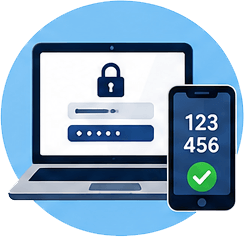
Enable two-factor authentication (2FA)
Whenever available, turn on two-factor authentication.
This requires:
- Your password.
- A code sent to your phone or generated by an authentication app.
Even if someone learns your password, they will usually be unable to access your account.
Consider using passkeys
Using passkeys
Passkeys are a newer and safer alternative to passwords.
Instead of remembering a password, you sign in using your device’s security features, such as:
- Fingerprint recognition.
- Face recognition.
- Your device PIN.
Passkeys are more resistant to phishing scams because they only work with the genuine website or app.
How do I create a passkey?
The exact steps vary slightly between websites, but the process is usually very simple:
- Sign in to your account as normal.
- Open the account’s Security or Sign-in settings.
- Look for an option called “Passkeys”, “Create a Passkey” or “Passwordless Sign-in”.
- Select Create Passkey.
- Your phone, tablet or computer will ask you to confirm your identity using your fingerprint, face recognition or device PIN.
- The passkey is then saved securely on your device.
Next time you sign in, you can usually use your fingerprint, face recognition or device PIN instead of typing a password.
Do I still need a password?
Many services keep your existing password as a backup, but increasingly passkeys are becoming the preferred and more secure method of signing in.
Is it safe?
Yes. In fact, passkeys are generally considered safer than traditional passwords because:
- They cannot be guessed.
- They cannot be stolen through phishing emails.
- They are tied to your device.
- They are easier to use correctly.
If a website offers passkeys, it is usually worth enabling them.
Spotting fraudulent emails
Before opening an email, ask yourself:
Is the sender genuine?
Check the full sender address.
Example:
- Genuine: support@company.co.uk
- Suspicious: company-support@gmail.com
Is the message unexpected?
Were you expecting a parcel, refund or invoice?
If not, be cautious.
Does it create panic?
Messages claiming:
- urgent account problems
- missed deliveries
- tax refunds
- security alerts
are common scam themes.
Hover before clicking
On a computer, place your mouse pointer over a link without clicking.
Check where it actually goes.
If the destination looks unfamiliar or unrelated to the sender, do not click.
Look for poor quality
Many scam emails contain:
- spelling mistakes
- unusual grammar
- strange wording
- low-quality logos
Safe web browsing
Keep your browser updated
Updates fix security weaknesses that criminals may exploit.
Allow automatic updates whenever possible.
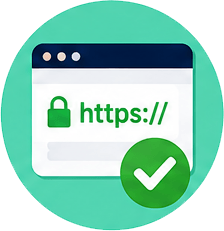
Look for HTTPS
Before entering passwords or payment information, check that the website address begins with https:// and displays a padlock icon.
Be careful with search results
This does not guarantee a website is genuine, but it is an important first check.
Fraudsters sometimes advertise fake websites.
Always double-check the web address before logging in or making payments.

Basic security self-checks
You do not need technical expertise to carry out simple checks.
Check for software updates
Regularly update:
- computers
- tablets
- phones
- web browsers
Review your accounts
Every few months:
- Check banking transactions.
- Review online shopping accounts.
- Check email security settings.
- Remove unused accounts if possible.
Monitor for data breaches
If a website you use suffers a data breach:
- Change your password immediately.
- Change any other accounts using the same password.
Run antivirus scans
Use reputable security software and run periodic scans.
Checking website addresses
Before entering personal information:
Ask:
- Is the spelling correct?
- Does the address look genuine?
- Is it the official organisation?
Examples:
- Genuine: yourbank.co.uk
- Suspicious: yourbank-secure-login.com
Fraudsters often register addresses that look similar to trusted organisations.
Sending sensitive information safely
Whenever possible:
- Use secure customer portals.
- Use encrypted services provided by banks or solicitors.
- Avoid sending personal information through ordinary email.
Never send:
- passwords
- banking PINs
- authentication codes
by email.
Mobile phone safety
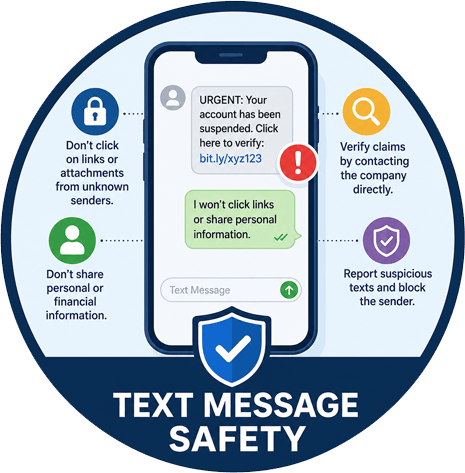
Be wary of text messages
Scam texts often:
- claim a parcel is waiting
- request payment of small fees
- ask you to click a link
Do not click links from unexpected messages.

App safety
Only download apps from official stores:
- Apple App Store
- Google Play Store
Avoid downloading apps from links in messages.

Social media safety
Be cautious about sharing:
- birthdays
- addresses
- holiday plans
- family details
Criminals can use this information for scams and identity theft.
Review privacy settings regularly.

Common scams to watch for
Bank impersonation
Someone claims to be from your bank and asks for security details.
Your bank will never ask for passwords or PINs by phone or email.
Delivery scams
Messages claim a parcel cannot be delivered until a fee is paid.
Check directly with the courier.
Investment scams
Be suspicious of guaranteed returns or ‘risk-free’ investments.
If it sounds too good to be true, it usually is.
Romance scams
Be cautious when online acquaintances request money, gift cards or financial help.
If you think you’ve been scammed
Act quickly:
- Contact your bank immediately.
- Change affected passwords.
- Report the incident to Action Fraud.
- Tell family members or friends who may also be targeted.
- Keep copies of messages and emails.
Quick action can sometimes prevent further losses.
Remember
Most online fraud succeeds because criminals create pressure, fear or excitement.
The best protection is simple:
STOP – THINK – CHECK
If something feels wrong, pause and verify before taking action.
Report Fraud
The place to prevent cyber crime and fraud.
Individuals and families Action Plan
Want to improve your personal cybersecurity?
Answer a few simple questions to get a free personalised cyber action plan.
The Cyber Resilience Centre for the South East
This is a Home Office and Police crime prevention initiative, to help all organisations avoid fraud and online crime.